PowerScale Setup
View on GitHubPowerScale Setup
Testing
Section titled “Testing”Test 1 - Generic Share
Section titled “Test 1 - Generic Share”- Created a system user grant on the local OS, set up a share, and gave that user privileges.
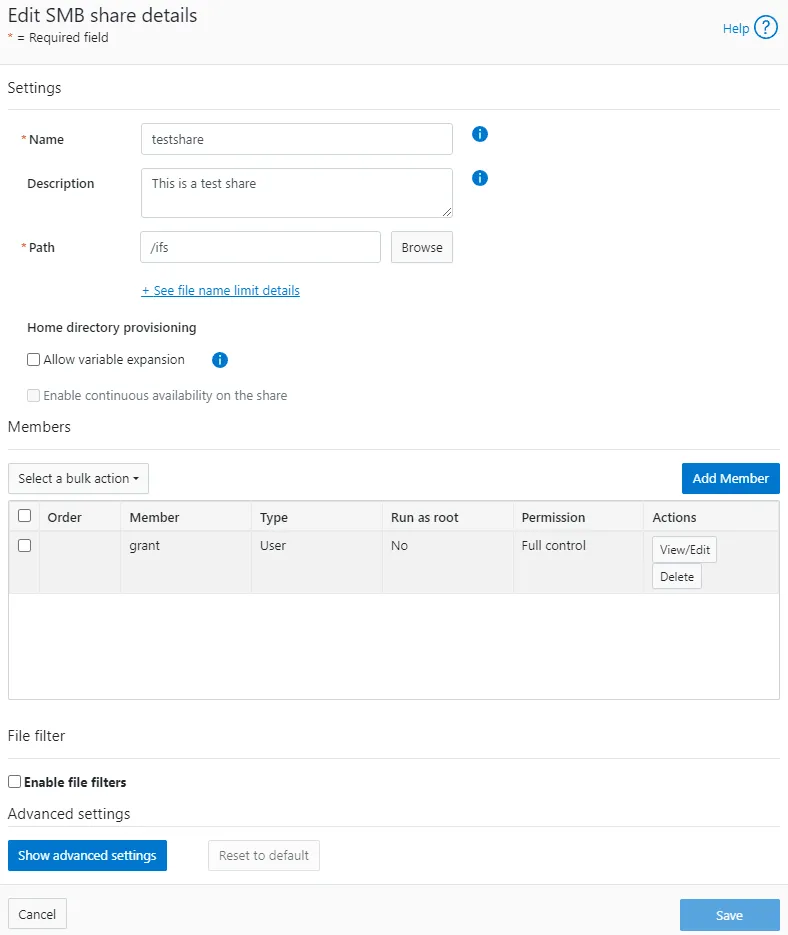
Against Windows 11
Section titled “Against Windows 11”- I was able to access that without issue
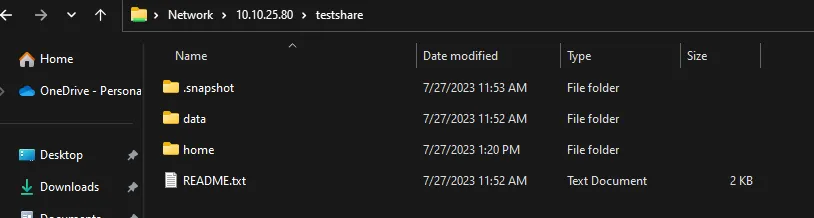
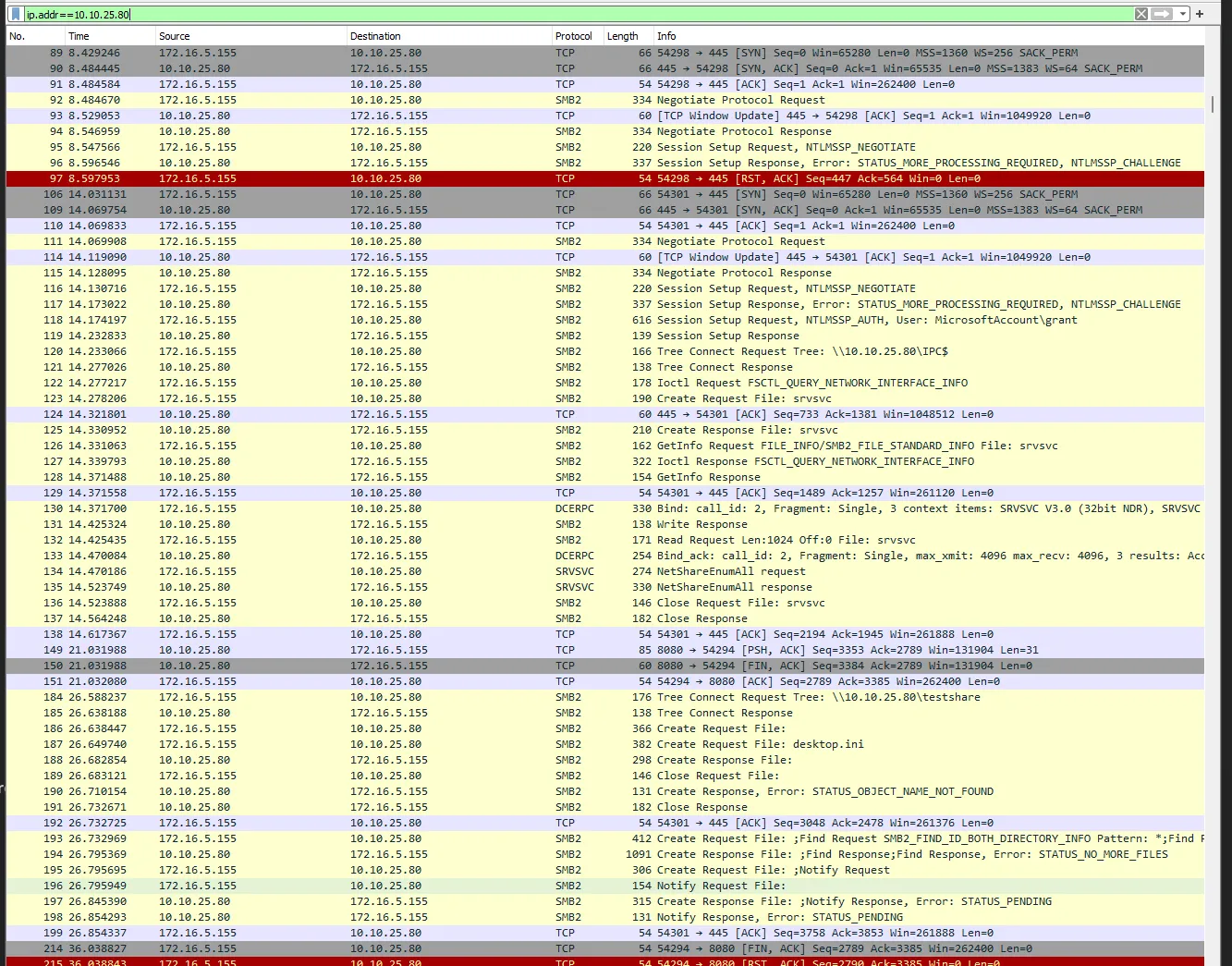
- Default communication happened with SMBv2
Against Rocky Linux 9
Section titled “Against Rocky Linux 9”- Ran command
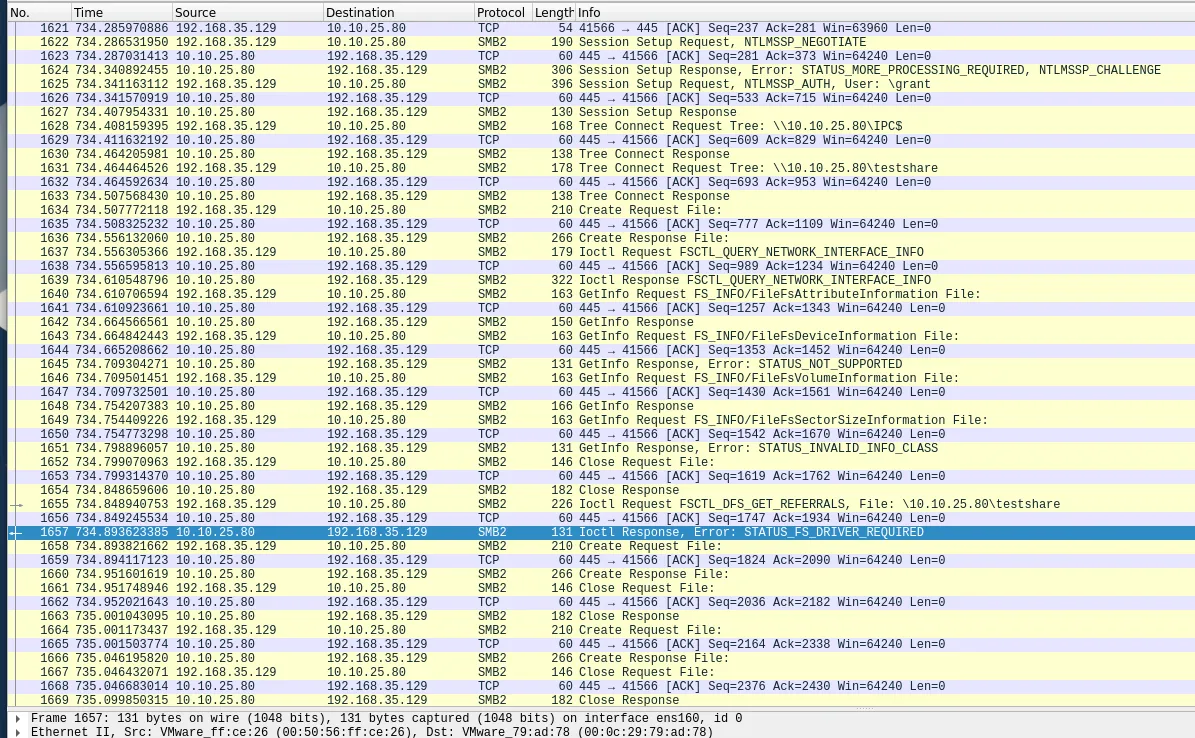
sudo mount.cifs //10.10.25.80/ifs ~/share -o vers=2.0,username=grant,password='somepassword'which gavemount error(2): No such file or directory - Received:
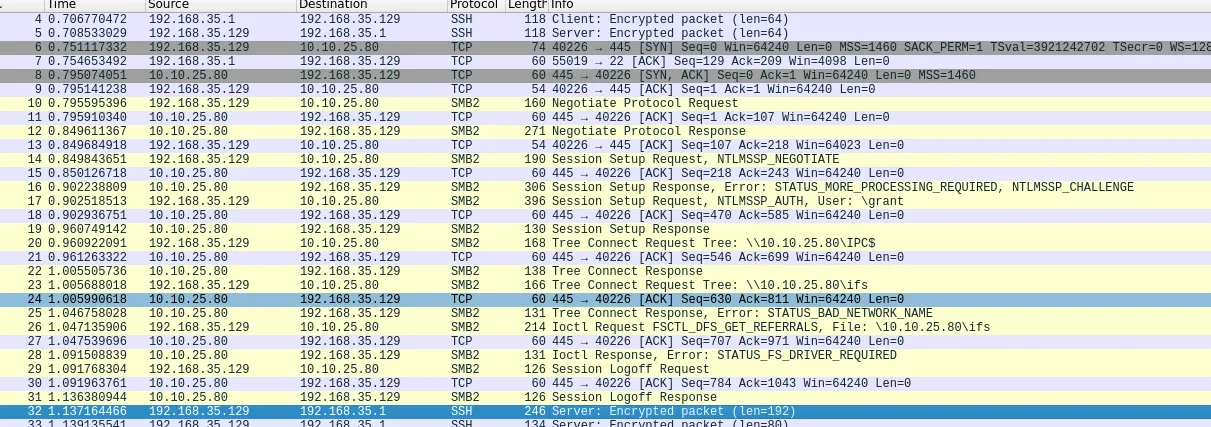
- I think the “STATUS_FS_DRIVER_REQUIRED” may be misleading because I have the CIFS module:
[root@acas ~]# lsmod | grep cifcifs 2355200 0cifs_arc4 16384 1 cifsrdma_cm 139264 1 cifsib_core 450560 4 rdma_cm,cifs,iw_cm,ib_cmcifs_md4 16384 1 cifsdns_resolver 16384 1 cifs- The problem was I was providing the share path not the share name - like a genius.
sudo mount -t cifs //10.10.25.80/testshare /root/share -o username=grant,password='somepassword'works.
Test 2 - Add FIPS
Section titled “Test 2 - Add FIPS”Add FIPS
Section titled “Add FIPS”Working from this procedure
- Check if FIPS is already active
gcluster-1# isi security settings view FIPS Mode Enabled: No USB Ports Disabled: NoRestricted shell Enabled: No- Make sure nodes are healthy
gcluster-1# isi statusCluster Name: gclusterCluster Health:     [ ATTN]Data Reduction:     1.00 : 1Storage Efficiency: 0.31 : 1Cluster Storage:  HDD                 SSD StorageSize:             168.1G (234.9G Raw) 0 (0 Raw)VHS Size:         66.8GUsed:             327.9M (< 1%)       0 (n/a)Avail:            167.8G (> 99%)      0 (n/a)
                   Health Ext  Throughput (bps)  HDD Storage      SSD StorageID |IP Address     |DASR |C/N|  In   Out  Total| Used / Size     |Used / Size---+---------------+-----+---+-----+-----+-----+-----------------+-----------------  1|10.10.25.80    |-A-- | C |27.1k| 2.1M| 2.1M| 126M/56.0G(< 1%)|(No Storage SSDs)  2|10.10.25.81    |-A-- | C |    0|67.1k|67.1k| 109M/56.0G(< 1%)|(No Storage SSDs)  3|10.10.25.82    |-A-- | C |    0| 270k| 270k|93.1M/56.0G(< 1%)|(No Storage SSDs)---+---------------+-----+---+-----+-----+-----+-----------------+-----------------Cluster Totals:              |27.1k| 2.4M| 2.4M| 328M/ 168G(< 1%)|(No Storage SSDs)
     Health Fields: D = Down, A = Attention, S = Smartfailed, R = Read-Only           External Network Fields: C = Connected, N = Not Connected
Critical Events:Time            LNN  Event--------------- ---- -------------------------------------------------------07/27 12:04:21  1    One or more drives (location(s) Bay  7, Bay  8, Bay ...07/27 12:30:35  3    Missing COMMITTED image in secure catalog07/27 12:30:56  2    One or more drives (location(s) Bay  7, Bay  8, Bay ...07/27 12:35:35  3    One or more drives (location(s) Bay  7, Bay  8, Bay ...

Cluster Job Status:
No running jobs.
No paused or waiting jobs.
No failed jobs.
Recent job results:Time Job Event--------------- -------------------------- ------------------------------07/27 12:29:37 MultiScan[3] Succeeded07/27 12:22:42 MultiScan[2] Succeeded07/27 11:58:30 DomainTag[1] Succeeded- Turn on FIPS
gcluster-1# isi security settings modify --fips-mode-enabled=truegcluster-1# isi security settings view FIPS Mode Enabled: Yes USB Ports Disabled: NoRestricted shell Enabled: NoTest Against Windows 11
Section titled “Test Against Windows 11”- It nows fails:

- This tracks since it’s clear from the
NTLMSSP_NEGOTIATEflag that it is using NTLM which the docs say is disabled.
Note: Updating the password hash also implicitly disables the NTLM support for SMB access that is used when shares are accessed through IP.
- The instructions also tell you to explicitly make the hash type SHA512 which also issues the warning regarding NTLM:
gcluster-1# isi auth file modify System --password-hash-type=SHA512NTLM support and authentication for all file protocols has been disabled for this provider due to change of password hash type.gcluster-1# isi auth local modify System --password-hash-type=SHA512- It also seems that without manual intervention the SSH key/cipher settings are more permissive than they should be:
gcluster-1# isi ssh settings view Banner: /etc/motd CA Signature Algorithms: ecdsa-sha2-nistp256,ecdsa-sha2-nistp384,ecdsa-sha2-nistp521,ssh-ed25519,rsa-sha2-512,rsa-sha2-256,ssh-rsa Ciphers: aes256-ctr Host Key Algorithms: +ssh-dss,ssh-dss-cert-v01@openssh.com Ignore Rhosts: Yes Kex Algorithms: ecdh-sha2-nistp256,ecdh-sha2-nistp384,ecdh-sha2-nistp521,diffie-hellman-group14-sha256,diffie-hellman-group-exchange-sha256 Login Grace Time: 2m Log Level: INFO Macs: hmac-sha2-256 Max Auth Tries: 3 Max Sessions: - Max Startups: Permit Empty Passwords: No Permit Root Login: Yes Port: 22 Print Motd: YesPubkey Accepted Key Types: +ssh-dss,ssh-dss-cert-v01@openssh.com,ssh-rsa Strict Modes: No Subsystem: sftp /usr/local/libexec/sftp-server Syslog Facility: AUTH Tcp Keep Alive: No Auth Settings Template: any- You have to follow this guide to fix them
gcluster-1# isi ssh settings modify --kex-algorithms 'diffie-hellman-group16-sha512,diffie-hellman-group16-sha512,ecdh-sha2-nistp384'gcluster-1# isi ssh settings modify --ciphers 'aes256-ctr,aes256-gcm@openssh.com'gcluster-1# isi ssh settings modify --host-key-algorithms 'ecdsa-sha2-nistp384'gcluster-1#gcluster-1# isi_for_array 'yes | /usr/local/bin/ssh-keygen -t ecdsa -f /etc/ssh/ssh_host_ecdsa_key -b 384 -N ""'gcluster-3: Generating public/private ecdsa key pair.gcluster-3: /etc/ssh/ssh_host_ecdsa_key already exists.gcluster-3: Overwrite (y/n)? Your identification has been saved in /etc/ssh/ssh_host_ecdsa_keygcluster-3: Your public key has been saved in /etc/ssh/ssh_host_ecdsa_key.pubgcluster-3: The key fingerprint is:gcluster-3: SHA256:D6AMW5qyjg0jk61DRU2ed67zxOtqydWEU0xxzsnV+4Y root@gcluster-3gcluster-3: The key's randomart image is:gcluster-3: +---[ECDSA 384]---+gcluster-3: | o. oo.. ..|gcluster-3: | .... o= o .|gcluster-3: | o .o.. .o = .|gcluster-3: | O ...oo . . |gcluster-3: |. = o S.+ ..|gcluster-3: | * o+ . E o|gcluster-3: |O . .ooo. . |gcluster-3: |=* ++ . |gcluster-3: |oo. ..o+ |gcluster-3: +----[SHA256]-----+gcluster-2: Generating public/private ecdsa key pair.gcluster-2: /etc/ssh/ssh_host_ecdsa_key already exists.gcluster-1: Generating public/private ecdsa key pair.gcluster-1: /etc/ssh/ssh_host_ecdsa_key already exists.gcluster-2: Overwrite (y/n)? Your identification has been saved in /etc/ssh/ssh_host_ecdsa_keygcluster-2: Your public key has been saved in /etc/ssh/ssh_host_ecdsa_key.pubgcluster-2: The key fingerprint is:gcluster-2: SHA256:mv24dik4vJVvGbHhOorynFlNa8N6Ol2kiRGwoMrWuCs root@gcluster-2gcluster-2: The key's randomart image is:gcluster-2: +---[ECDSA 384]---+gcluster-2: | . .. |gcluster-2: | . . .. |gcluster-2: |. . . |gcluster-2: |o o . + |gcluster-2: |.+ . oS= + |gcluster-2: |. . .Boo= |gcluster-2: | . .+oXo + |gcluster-2: |E o. ==+B== |gcluster-2: |.. o* =Oo*o |gcluster-2: +----[SHA256]-----+gcluster-1: Overwrite (y/n)? Your identification has been saved in /etc/ssh/ssh_host_ecdsa_keygcluster-1: Your public key has been saved in /etc/ssh/ssh_host_ecdsa_key.pubgcluster-1: The key fingerprint is:gcluster-1: SHA256:ahrGrkc/YE1Ii4+YCxJgwFraGmiG2cb6M3yaY/AwMNA root@gcluster-1gcluster-1: The key's randomart image is:gcluster-1: +---[ECDSA 384]---+gcluster-1: |+. |gcluster-1: |ooE . |gcluster-1: |BB o o |gcluster-1: |@o* o . |gcluster-1: |+X o o S |gcluster-1: |@ ..= .. |gcluster-1: |oO o+oo |gcluster-1: |. O+o+o |gcluster-1: | .+Oo . |gcluster-1: +----[SHA256]-----+gcluster-1#gcluster-1# isi ssh settings modify --pubkey-accepted-key-types 'ssh-rsa'gcluster-1# isi ssh settings modify --macs 'hmac-sha2-256,hmac-sha2-512,hmac-sha2-512-etm@openssh.com,hmac-sha2-256-etm@openssh.com'gcluster-1# isi ssh settings view Banner: /etc/motd CA Signature Algorithms: ecdsa-sha2-nistp256,ecdsa-sha2-nistp384,ecdsa-sha2-nistp521,ssh-ed25519,rsa-sha2-512,rsa-sha2-256,ssh-rsa Ciphers: aes256-ctr,aes256-gcm@openssh.com Host Key Algorithms: ecdsa-sha2-nistp384 Ignore Rhosts: Yes Kex Algorithms: diffie-hellman-group16-sha512,diffie-hellman-group16-sha512,ecdh-sha2-nistp384 Login Grace Time: 2m Log Level: INFO Macs: hmac-sha2-256,hmac-sha2-512,hmac-sha2-512-etm@openssh.com,hmac-sha2-256-etm@openssh.com Max Auth Tries: 3 Max Sessions: - Max Startups: Permit Empty Passwords: No Permit Root Login: Yes Port: 22 Print Motd: YesPubkey Accepted Key Types: ssh-rsa Strict Modes: No Subsystem: sftp /usr/local/libexec/sftp-server Syslog Facility: AUTH Tcp Keep Alive: No Auth Settings Template: any- From the guide on having to disable FIPS mode:
PowerScale clusters running OneFS 9.4.0.0 with FIPS mode enabled may upgrade to OneFS 9.5.0.0 or later. After upgrading to OneFS Release 9.5.0.0 or later and committing the upgrade, re-enable FIPS mode. Disabling FIPS mode before upgrading is not required.
- I noticed that turning on FIPS immediately broke the admin user for the web ui
- At this point I set up active directory
- I added domain admins to the admins roles for system and security for powerscale
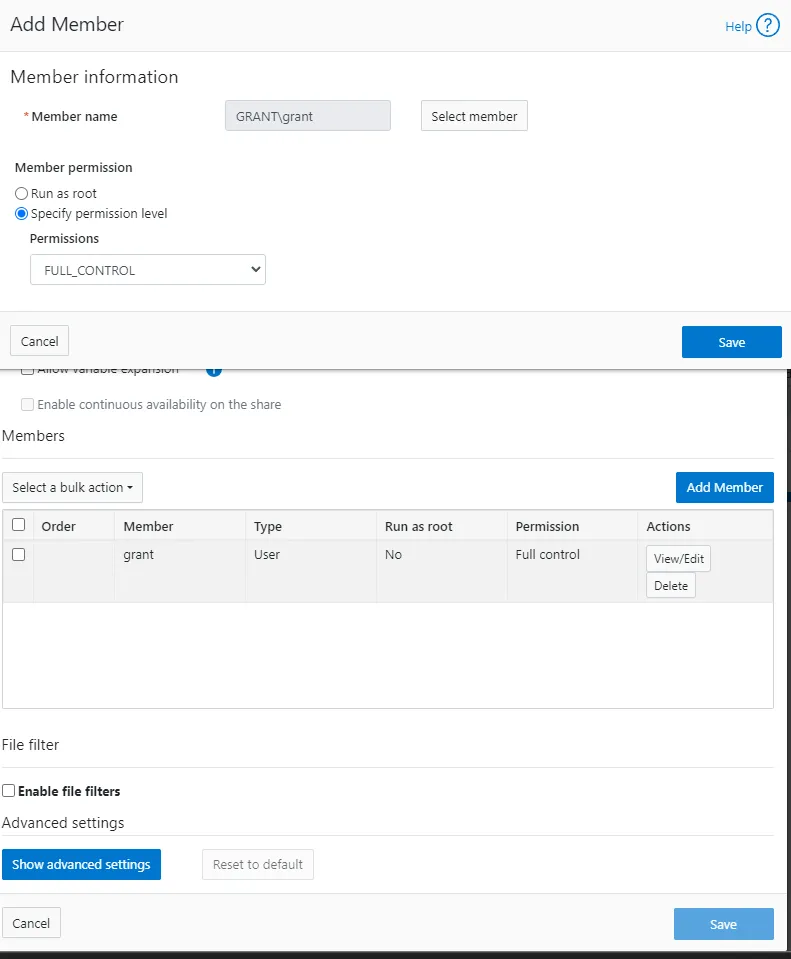
- I added my grant domain user to the SMB share:
- At this point I swapped over to Linux.
Set Up Active Directory
Section titled “Set Up Active Directory”- I already had an active directory server to test against
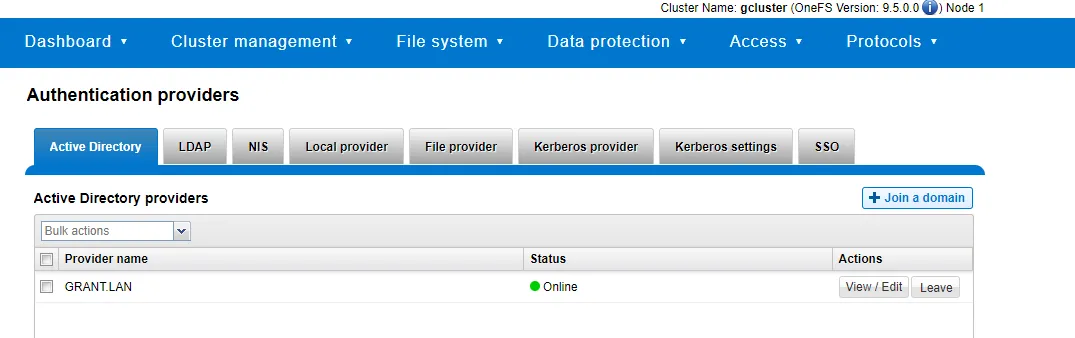
- I was not able to join with
isi auth ads create --name=win-6c2vli4n0lo.grant.lan --user=administrator --groupnet=groupnet0 - DO NOT select the RFC2309 option
Test Against Rocky Linux 9
Section titled “Test Against Rocky Linux 9”- Join the domain
# Install required packagessudo dnf install -y realmd sssd oddjob oddjob-mkhomedir adcli samba-common
# Discover and join the Active Directory domainsudo realm discover grant.lansudo realm join -U administrator grant.lan
# Allow domain users to log insudo authselect select sssd --force
# Enable home directory creation for domain userssudo systemctl enable oddjobdsudo systemctl start oddjobd
# Verify the domain membership and usersrealm list- Ensure domain join successful:
[root@acas ~]# realm listgrant.lan type: kerberos realm-name: GRANT.LAN domain-name: grant.lan configured: kerberos-member server-software: active-directory client-software: sssd required-package: oddjob required-package: oddjob-mkhomedir required-package: sssd required-package: adcli required-package: samba-common-tools login-formats: %U@grant.lan login-policy: allow-realm-logins- Run the mount:
[root@acas ~]# sudo mount -t cifs //10.10.25.80/testshare /mnt/testshare -o username=administrator,domain=grant.lan,password=somepasswordmount error(13): Permission deniedRefer to the mount.cifs(8) manual page (e.g. man mount.cifs) and kernel log messages (dmesg)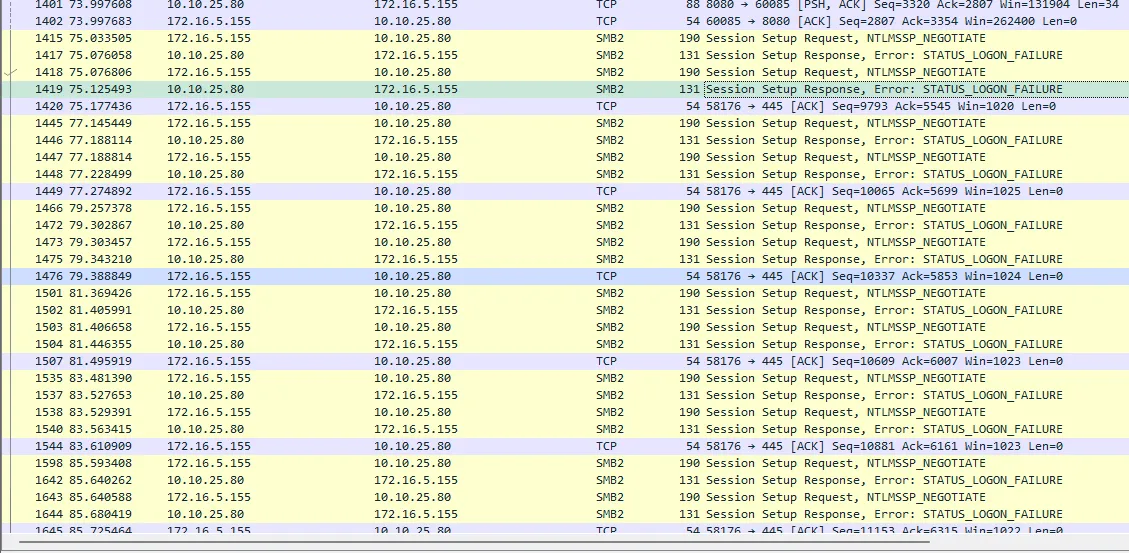
- Attempt to setting
sec=krb5returns bug-looking results:
[root@acas ~]# sudo mount -t cifs //10.10.25.80/testshare /mnt/testshare -o username=administrator,domain=grant.lan,sec=krb5mount error(0): SuccessRefer to the mount.cifs(8) manual page (e.g. man mount.cifs) and kernel log messages (dmesg)when you inspect dmseg you see:
[86217.278254] CIFS: VFS: \\10.10.25.80 Send error in SessSetup = -13[86228.682870] CIFS: Attempting to mount \\10.10.25.80\testshare[86228.816520] CIFS: VFS: Verify user has a krb5 ticket and keyutils is installed[86228.816530] CIFS: VFS: \\10.10.25.80 Send error in SessSetup = -126[86228.816564] CIFS: VFS: cifs_mount failed w/return code = -126How Kerberos Works in This Scenario
Section titled “How Kerberos Works in This Scenario”Overview: https://www.freecodecamp.org/news/how-does-kerberos-work-authentication-protocol/
Synopsis: the Active Directory user administrator@grant.lan logged into the Rocky 9 client (acas.lan) wants to mount a CIFS share on the Dell PowerScale (gcluster-1) that requires Active Directory Kerberos authentication.
-
TGT Acquisition with kinit:
- Before attempting to mount the CIFS share, the user
administrator@grant.lanon the Rocky 9 client (acas.lan) must obtain a Ticket Granting Ticket (TGT) from the Key Distribution Center (KDC). - To get the TGT, the user runs the
kinitcommand and provides their password when prompted:bash-5.1$ kinit administrator@grant.lanPassword for administrator@grant.lan:
- Before attempting to mount the CIFS share, the user
-
TGT Request to KDC:
- With the TGT in hand, the Rocky 9 client (
acas.lan) can now initiate the request to mount the CIFS share on the Dell PowerScale (gcluster-1) using themountcommand.
- With the TGT in hand, the Rocky 9 client (
-
CIFS Share Mount:
- The user
administrator@grant.lanruns themountcommand with the required options to mount the CIFS share on the Dell PowerScale:bash-5.1$ sudo mount -t cifs //10.10.25.80/testshare /mnt/testshare -o username=administrator@grant.lan,domain=GRANT.LAN,sec=krb5
- The user
-
TGT Usage and Service Principal:
- The
mountcommand uses the TGT acquired earlier to authenticate and obtain the Service Ticket from the KDC for accessing the CIFS service ongcluster-1. - The Service Ticket is generated for the service principal associated with the CIFS service on
gcluster-1. In this case, the service principal isCIFS/gcluster-1.grant.lan@GRANT.LAN.
- The
-
Service Ticket Response:
- The KDC (
dc.grant.lan) validates the TGT and generates a Service Ticket for the CIFS service (CIFS/gcluster-1.grant.lan) on the Dell PowerScale.
- The KDC (
-
Mounting the CIFS Share:
- With the Service Ticket, the Rocky 9 client (
acas.lan) successfully mounts the CIFS share on the Dell PowerScale (gcluster-1) at the specified mount point.
- With the Service Ticket, the Rocky 9 client (
The user acquires a TGT using kinit, and then the mount command leverages the TGT to request and obtain the Service Ticket for the CIFS share from the KDC. The Service Ticket is then used for mounting the CIFS share on the Dell PowerScale, allowing the user to access the share securely without re-entering their password during the session.
-
Mounting the CIFS Share:
- The Rocky 9 client (
acas.lan) receives the Service Ticket and sends it, along with the request to mount the CIFS share, to the Dell PowerScale (gcluster-1). - The Dell PowerScale (
gcluster-1) decrypts the Service Ticket using the session key shared with the client and validates the user’s identity and permissions to access the CIFS share. - If everything checks out, the CIFS share is successfully mounted on the Rocky 9 client (
acas.lan).
- The Rocky 9 client (
-
Session Key for Secure Communication:
- The client (
acas.lan) and the CIFS service on the Dell PowerScale (gcluster-1) now have a shared session key for secure communication during the CIFS session.
- The client (
Throughout this process, the client, KDC, and CIFS service use symmetric encryption and shared secret keys to securely exchange credentials and generate tickets. Once the user is authenticated with a TGT, they can access the CIFS share without having to re-enter their password during the session. This provides a secure and seamless single sign-on (SSO) experience for the user.
What is a Service Principal
Section titled “What is a Service Principal”A service principal is a unique identity within a Kerberos-based authentication system that represents a specific network service or application. In a Kerberos authentication environment, each network service (e.g., web server, email server, file server) is assigned its own service principal, which is used to authenticate and authorize clients to access the service securely.
Service principals are created and managed by the Key Distribution Center (KDC) in the Kerberos realm. The KDC issues a set of cryptographic keys to each service principal, which are used for secure communication between the client and the service.
When a client wants to access a network service that requires Kerberos authentication, it requests a Ticket Granting Ticket (TGT) from the KDC by authenticating with its own principal (typically associated with a user). The TGT allows the client to request Service Tickets for specific service principals. The client then presents the Service Ticket to the service principal as proof of its identity, and the service principal validates the ticket and grants access to the requested service.
Service principals are essential for securing communication in a Kerberos environment because they allow clients and services to establish trust and verify each other’s identities. Each service principal has a unique name and is associated with a specific network service, ensuring that only authorized clients can access the corresponding service.
For example, if you have a web server named “example.com,” it would have its own service principal called “HTTP/example.com@REALM” (where REALM is the Kerberos realm name). Clients authenticating to the web server would obtain Service Tickets for this specific service principal to gain access to the web server’s resources securely.
Debugging
Section titled “Debugging”- This command does not cause any traffic to the DC so it’s not talking to it:
bash-5.1$ kvno cifs/10.10.25.80 kvno: Server not found in Kerberos database while getting credentials for cifs/10.10.25.80@GRANT.LAN