Testing Bare Metal Orchestrator
View on GitHubTesting Bare Metal Orchestrator
Supported Operating Systems
Section titled “Supported Operating Systems”License Requirements
Section titled “License Requirements”Architecture
Section titled “Architecture”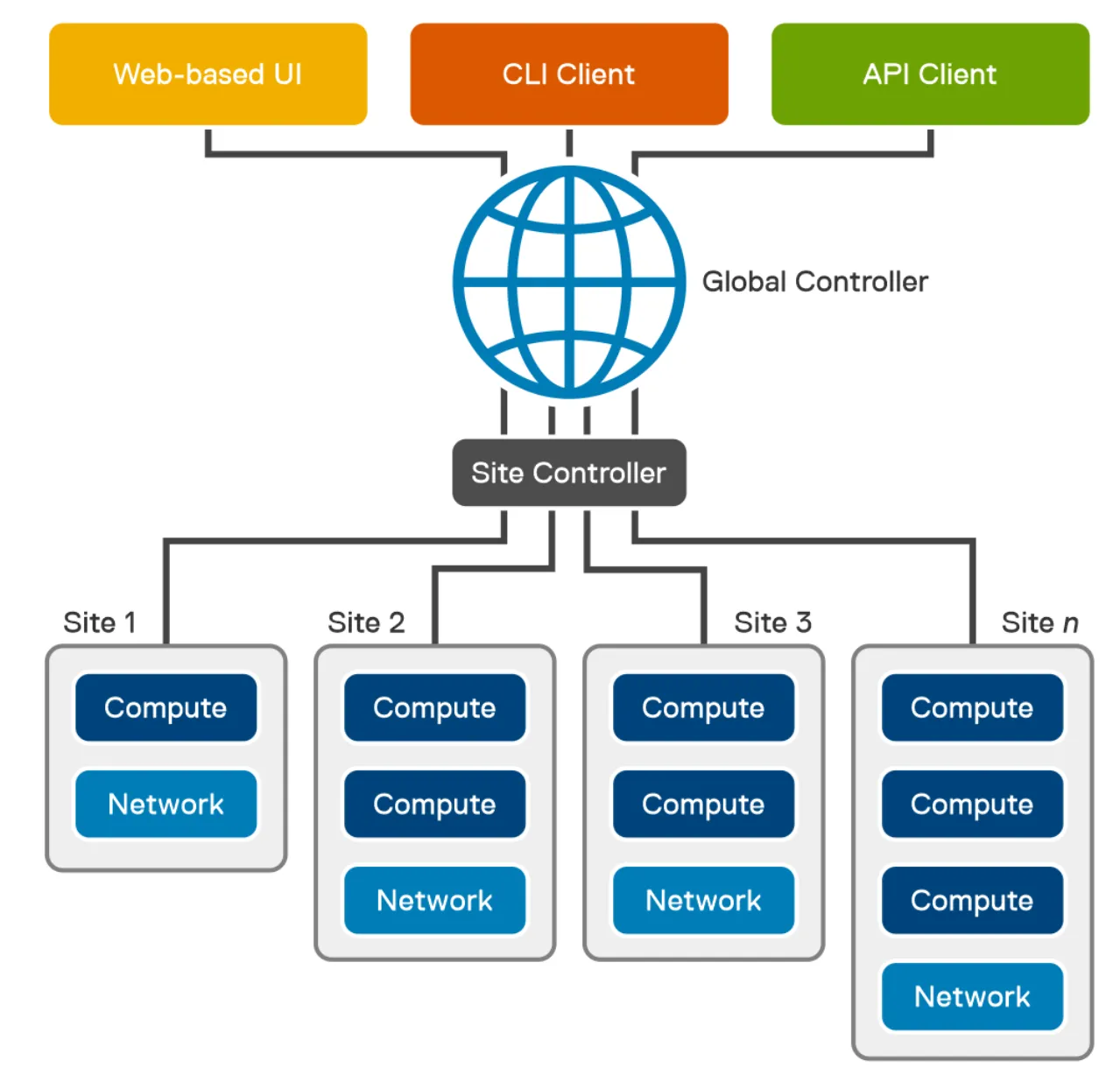
User interfaces— Bare Metal Orchestrator provides a web-based User Interface (UI), a Command Line Interface (CLI) client, and an Application Programming Interface (API) to perform remote infrastructure management tasks. All requests and actions from these interfaces reach the global controller. Global Controller—The Global Controller (GC) is a fully contained management cluster that is deployed at the central office. The Global Controller can manage sites and servers that are associated with it. It constitutes core components and site components. For more information, see Bare Metal Orchestrator components.
BMO Features and Functions
Section titled “BMO Features and Functions”Archecture with HA
Section titled “Archecture with HA”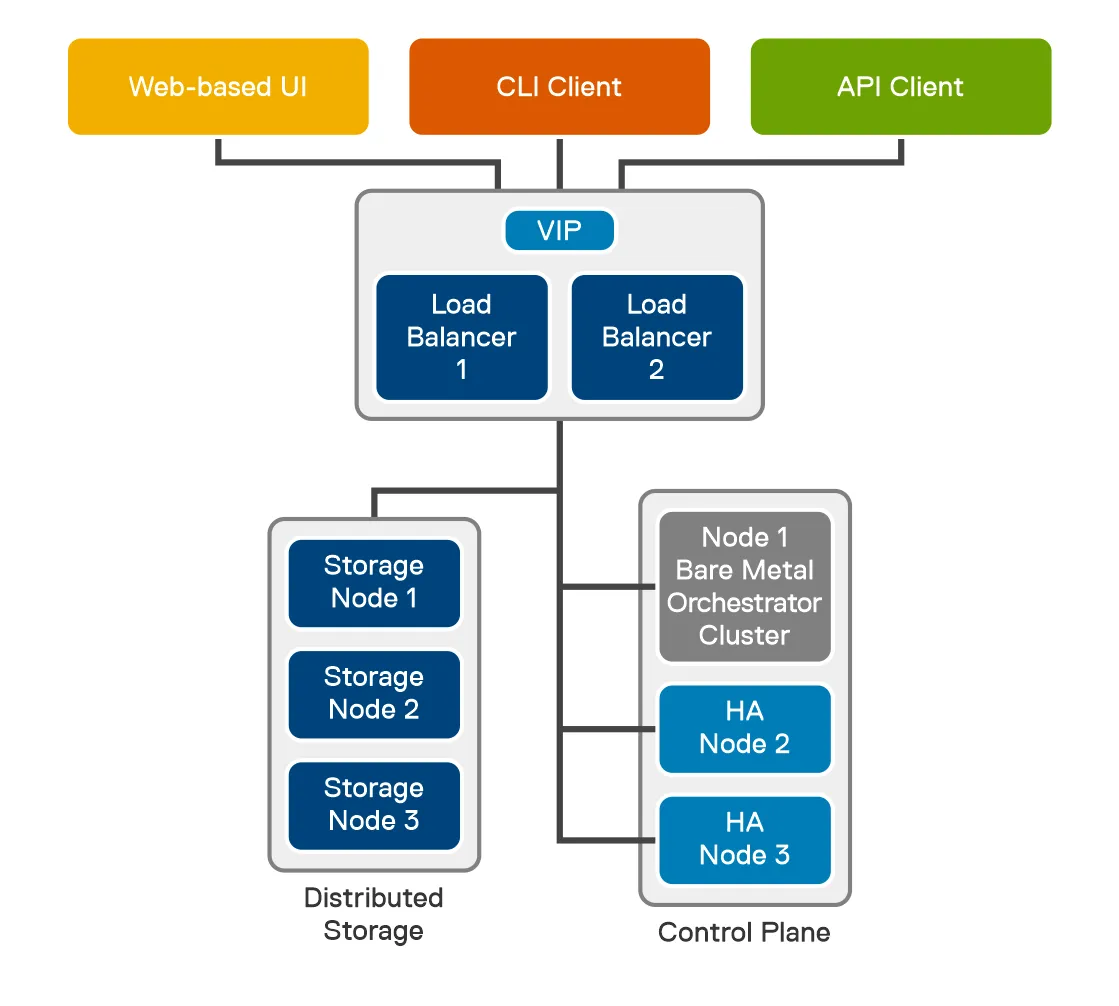
GlusterFS provides distributed file storage for the Global Controller and the two redundant HA nodes in the control plane cluster. The distributed storage volumes replicate the Bare Metal Orchestrator cluster data when using PersistentVolumeClaim (PVC).
Distributed storage can be deployed locally in the three-node control plane cluster or externally. For external storage deployments, the VMs hosting the storage volumes must be reachable by the HA cluster. A minimum of three storage nodes are required.
Note: The remote site uses local-path as the storage class.
Note: I’m going to try the single node first
- Log in with installer / Dell1234
- Configure networking (just fill in the blanks) with
vim /etc/network/interfaces - Update DNS
vim /etc/resolv.conf - Update the hosts file with
<address you used above> localregistry.io - Reboot
cd mw-ova-ansible- Edit inventory/my-cluster/hosts.ini to have the following (replace the IP with your global IP address)
;  ansible-playbook -v site.yml -i inventory/sample/hosts.ini[global_controller]192.168.1.67
[ha]
[loadbalancer]
[gluster_nodes]192.168.1.67
[secondary_ip]; cp1 - secondary IP address. set this for single node and HA cluster. (OPTIONAL); cp2 - secondary IP address. set for HA cluster. (OPTIONAL); cp3 - secondary IP address. set for HA cluster. (OPTIONAL)
[node]; host1; host2
[node-remove]; host1
[hosts]192.168.1.67 ansible_python_interpreter=/usr/bin/python3; 192.168.dd152.160 ansible_python_interpreter=/usr/bin/python3- Edit inventory/my-cluster/group_vars/all.yml and change
gluster_volume_typeto"none" - Run
lsblkand make sure that you see:- Note: on mine the swap drive wasd SDA5 and I choose to ignore it. We’ll see if I’m punished.
sda ——sda1 ——sda2 ——sda3sdb ——sdb1- Update singlenode-site.yaml with your info
- Run
sudo ansible-playbook ssh-copy-heketi.yaml -i inventory/my-cluster/hosts.inisudo ansible-playbook setup.yaml -i inventory/my-cluster/hosts.iniCreate a User for Global Admin
Section titled “Create a User for Global Admin”- On BMO create a YAML file with the below
name: Adminemail: admin@dell.comcountry: USAcity: Denverorganization: DellorgUnit: BDCprovince: Coroles:- global-admin- After you have created the file run
bmo create user -f <username>.yaml > <config>.yaml - Download the output file and browse to
https://BMO_ADDRESS - Use the config file to login
Deploy a Server
Section titled “Deploy a Server”TODO
Questions
Section titled “Questions”- I see the API proxy - how does billing / licensing work if you are offline?
Problems
Section titled “Problems”- A lot o the documentation links are broken. Ex:
- https://infohub.delltechnologies.com/l/bare-metal-orchestrator-1-2-command-line-interface-user-s-guide-1/managed-device-discovery-overview-1#GUID-C1AEBE7E-0569-4E04-83CB-5CD77FFA6615
- The mMetadata link for servers: https://infohub.delltechnologies.com/l/bare-metal-orchestrator-1-2-command-line-interface-user-s-guide-1/create-a-server-or-multiple-servers-and-update-configurations-3#GUID-12309190-709C-4436-8937-D367B5978993
- Error when adding server. When I was in sites I just used the name.
- I had to look under inventory, actions, discover device to realize that the global site name was actually gc
- This link is broken: https://infohub.delltechnologies.com/l/bare-metal-orchestrator-1-2-command-line-interface-user-s-guide-1/create-a-server-or-multiple-servers-and-update-configurations-3#GUID-AF06D60B-3E6D-46A3-9722-B3D2E0D44BCB on https://infohub.delltechnologies.com/l/bare-metal-orchestrator-1-2-command-line-interface-user-s-guide-1/create-a-server-or-multiple-servers-and-update-configurations-3
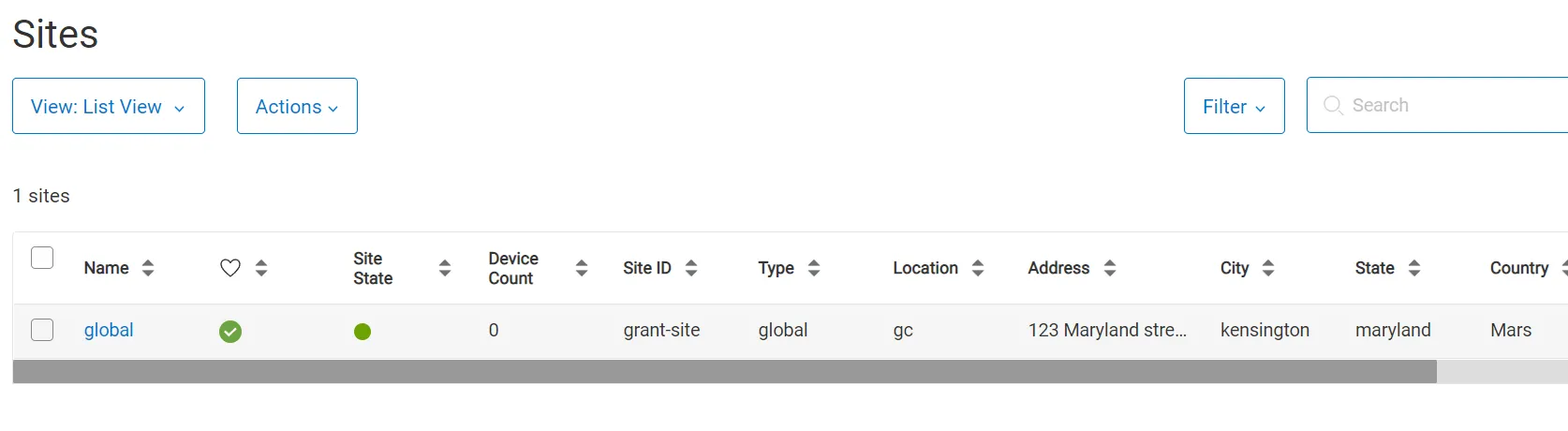
dell@bmo-manager-1:/tmp$ bmo create server -f r7525_perc.yamlFailed to create server in the 'metalweaver' namespace, server :dell-perc-r7525, reason: site does not exist: global
dell@bmo-manager-1:/tmp$ cat r7525_perc.yamlapiVersion: mw.dell.com/v1kind: Servermetadata: name: dell-perc-r7525 labels: profile: baseline-profile site: globalspec: # Add fields here bmcEndPoint: "https://192.168.1.46" userName: "root" password: "password"- It would be helpful if the help were contextual. Ex:
bmo create --helpreturns the command help fur create rather than the generic BMO command - It would be helpful to have a way to pretty print the output of something like
bmo create hardwareprofile -f <FILE> - Error I received on import was
dell@bmo-manager-1:~$ bmo create hardwareprofile -f hw_pf_bios.yamlFailed to create hardware profile in the 'metalweaver' namespace, reason: HardwareProfile.mw.dell.com "r7525-profile" is invalid: [spec.server.bios.attributes.numLock: Unsupported value: "true": supported values: "On", "Off", spec.server.bios.attributes.setBootOrderEn: Invalid value: "AHCI": spec.server.bios.attributes.setBootOrderEn in body should match '^$|^((\w+|\*)\.(\w+|\*)\.(\w+|\*)(\-(\w+|\*))*((\w+|\*))*(\:((\w+|\*)\.(\w+|\*)\.(\w+|\*)(\-(\w+|\*))*((\w+|\*))*))*)(\,(\w+|\*)\.(\w+|\*)\.(\w+|\*)(\-(\w+|\*))*((\w+|\*))*(\:((\w+|\*)\.(\w+|\*)\.(\w+|\*)(\-(\w+|\*))*((\w+|\*))*))*)*$', spec.server.bios.attributes.serialPortAddress: Unsupported value: "Com": supported values: "Com1", "Com2", spec.server.bios.attributes.conTermType: Unsupported value: "Vt": supported values: "Vt100Vt220", "Ansi", spec.server.bios.attributes.tpmSecurity: Unsupported value: "true": supported values: "On", "Off", "OnPbm", "OnNoPbm", spec.server.bios.attributes.usbManagedPort: Unsupported value: "true": supported values: "On", "Off", spec.server.bios.attributes.pxeDev1Interface: Invalid value: "NIC": spec.server.bios.attributes.pxeDev1Interface in body should match '^NIC\.[A-Za-z]+\.[0-9]+\-[0-9]+\-[0-9]+']but in my file I had NumLock: On which is confusing because I did properly have numlock set to On. The real problem was that it wanted numLock instead of NumLock
Bug Report
Section titled “Bug Report”See Bug Report